%20on%20Stape%20-%20cover%20image.jpeg)
We previously explained the concept of Server-Side Google Tag Manager (sGTM) and how implementing it requires technical expertise, especially for the server setup. In this article, we will show you an easier, faster, and potentially more cost-effective way to set up sGTM — by using Stape.
Stape is a dedicated platform that simplifies server-side tracking. Instead of getting your IT teams to set up and manage the sGTM servers on Google Cloud Platform / Amazon Web Services / Microsoft Azure / in-house custom servers, which requires technical expertise and time, Stape helps you to set all this up through a Web UI, bypassing a lot of the technical complexity and greatly speeding up the process.
Stape servers are fully managed by Stape, with built-in security, so you don't have to do this yourself. Stape also provides many Power-Ups which help further improve your tracking accuracy, so you don't have to get your IT teams to custom develop any of these.

Let's go through a sGTM setup using Stape, and we will also showcase some Stape Power-Up features.
We will be using our corporate website www.ayudante.asia as an example. This guide assume that you have set up standard web GTM (client-side) tracking Google Analytics (GA) events on a website before.
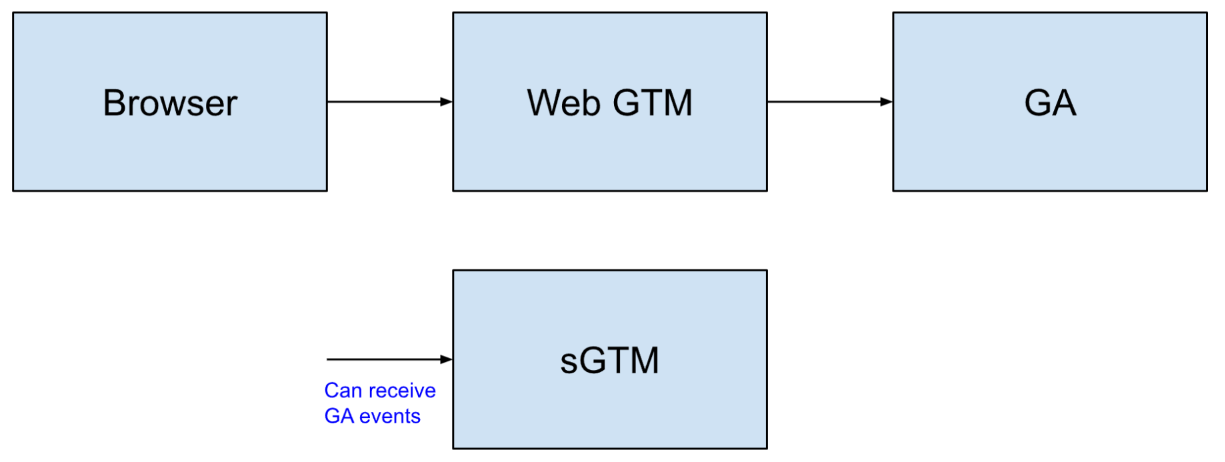
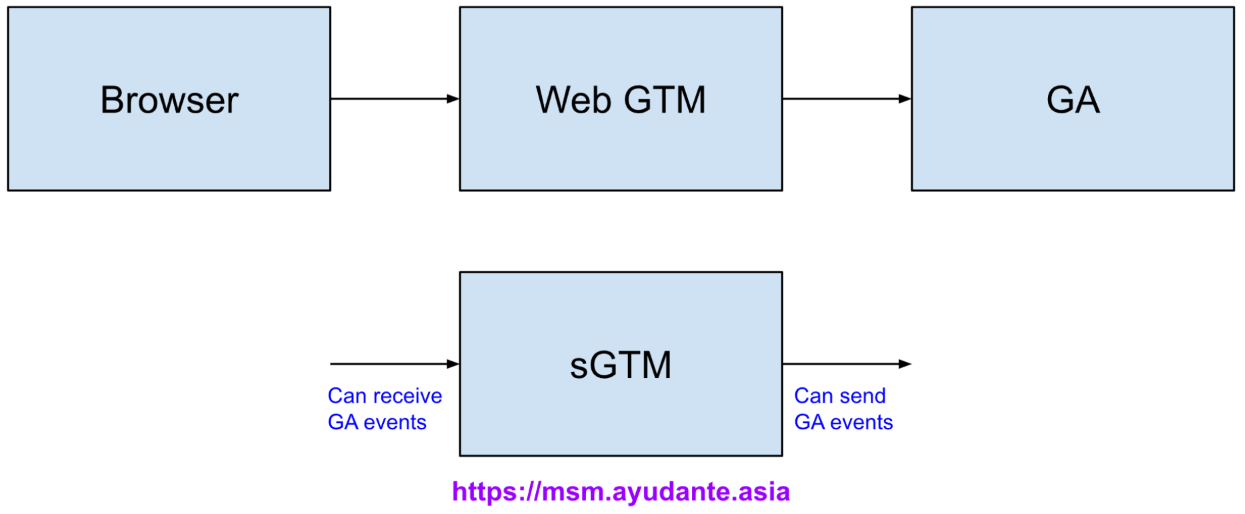
To help you visualize, this is your current setup:

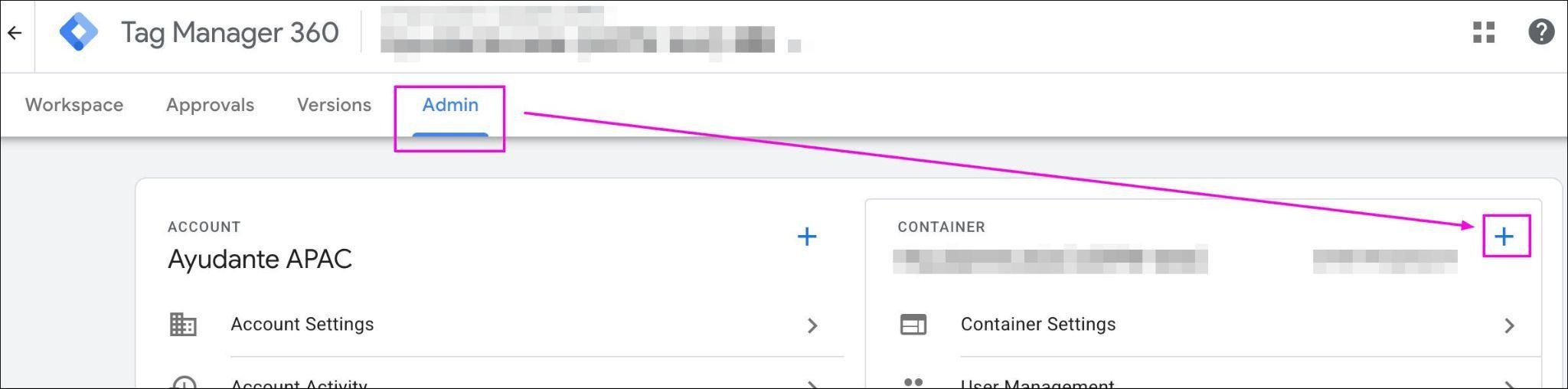
Login to your GTM container. Create a new container:
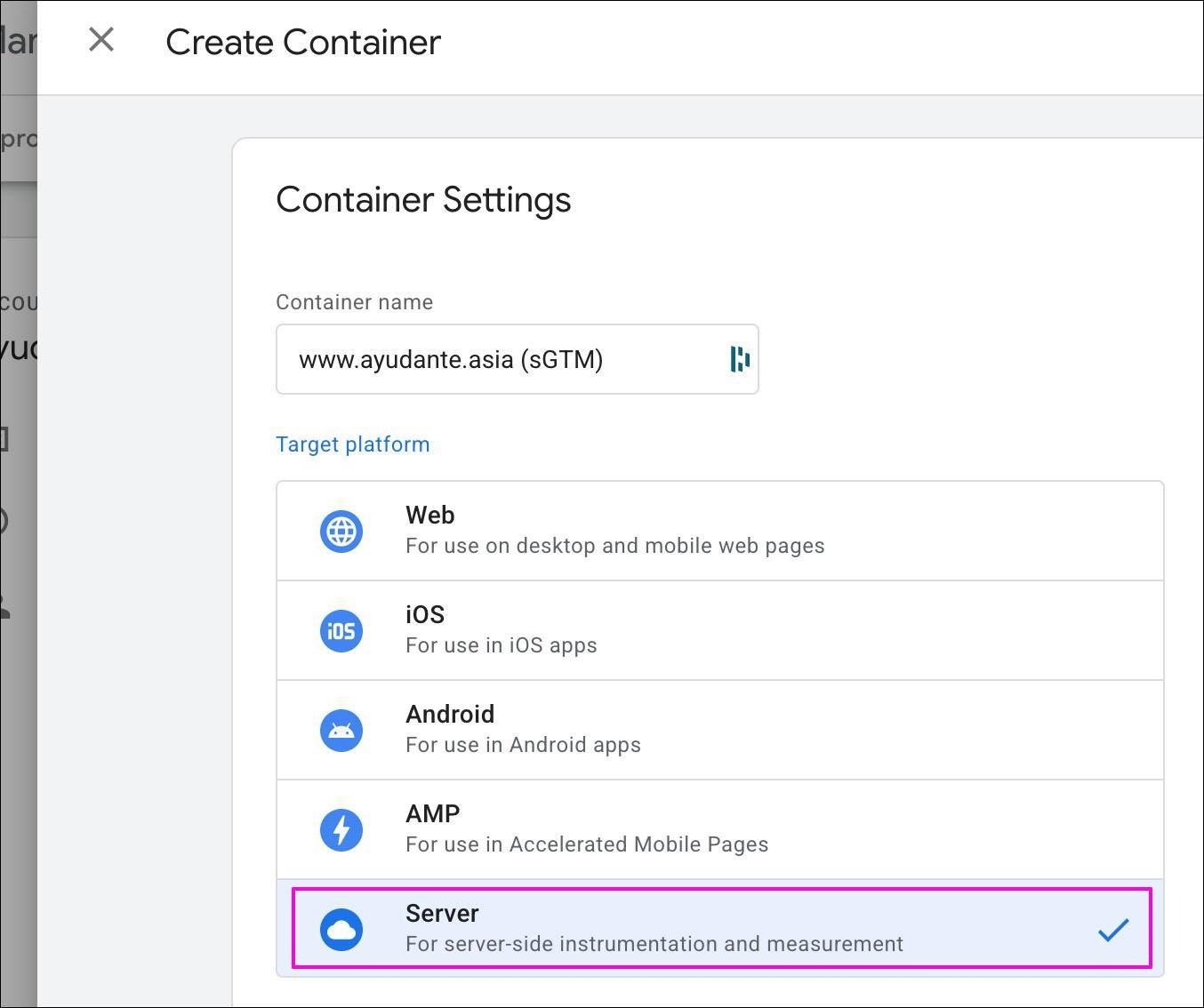
In the next screen, ensure to select Server as the target platform:
In the next screen, since we are not using Google Cloud Platform, select the Manually provision tagging server option:
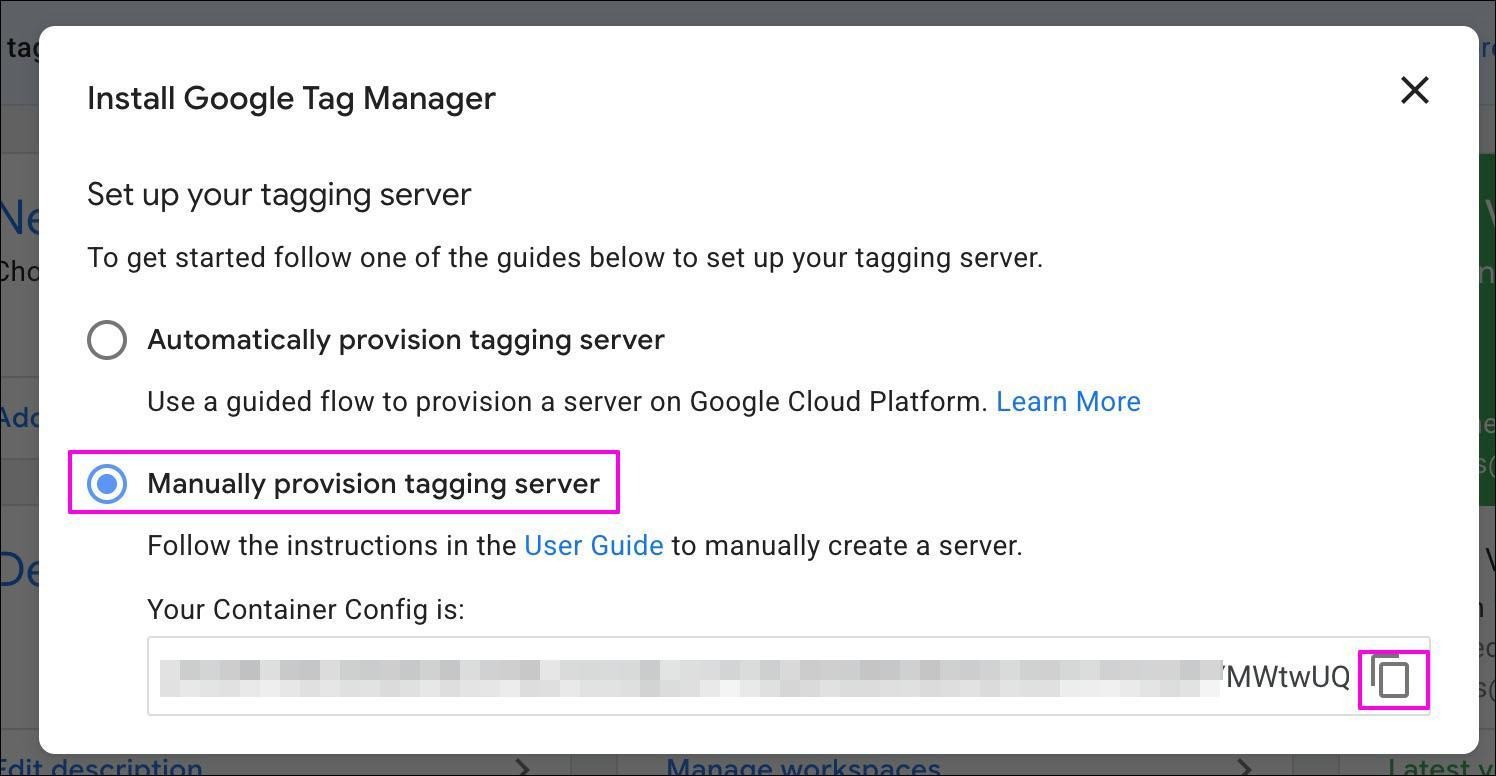
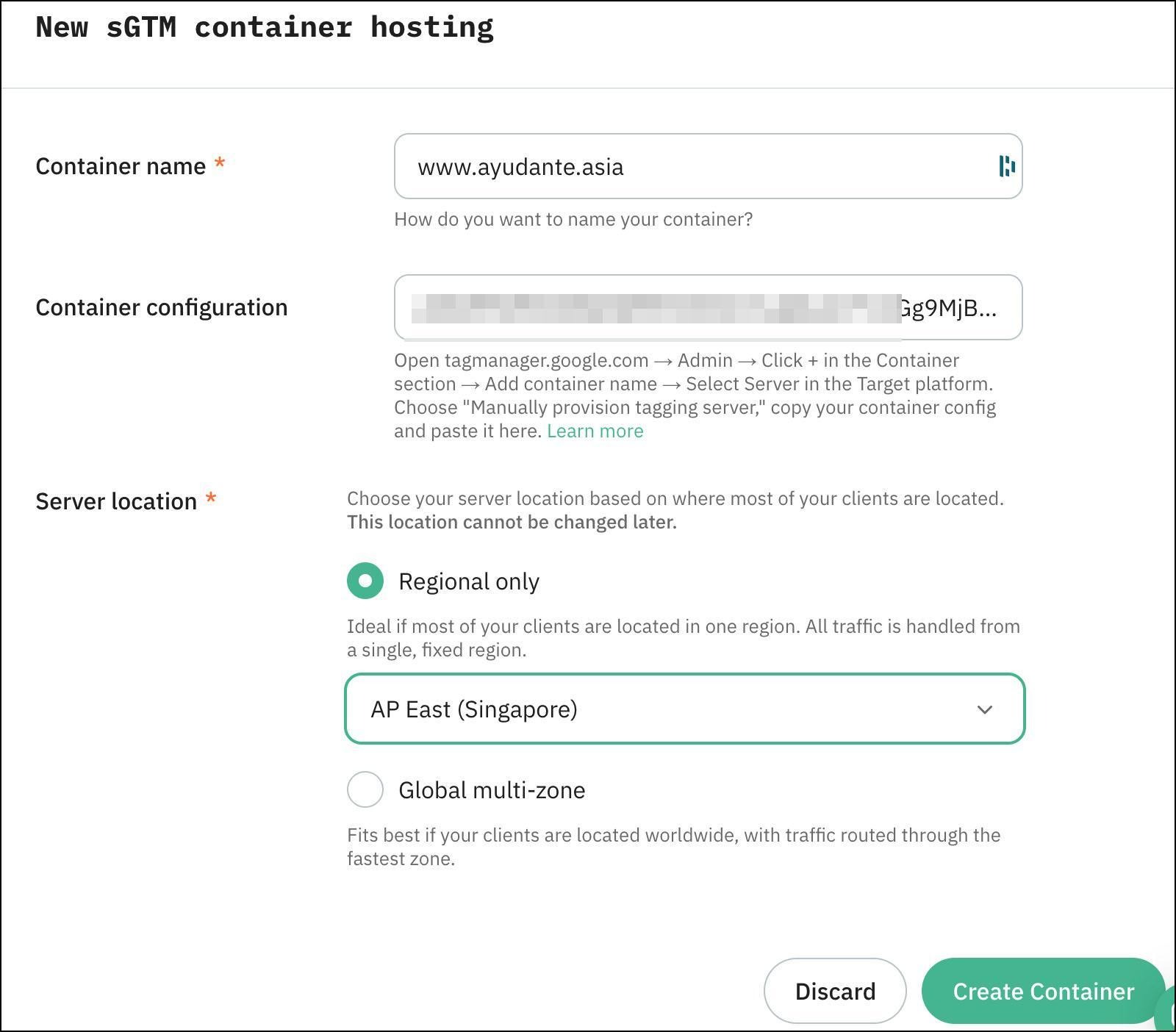
And copy the Container Config code, we will need this later during the Stape setup.
By default, a GA client is already created for you, which allows sGTM to receive incoming GA events:
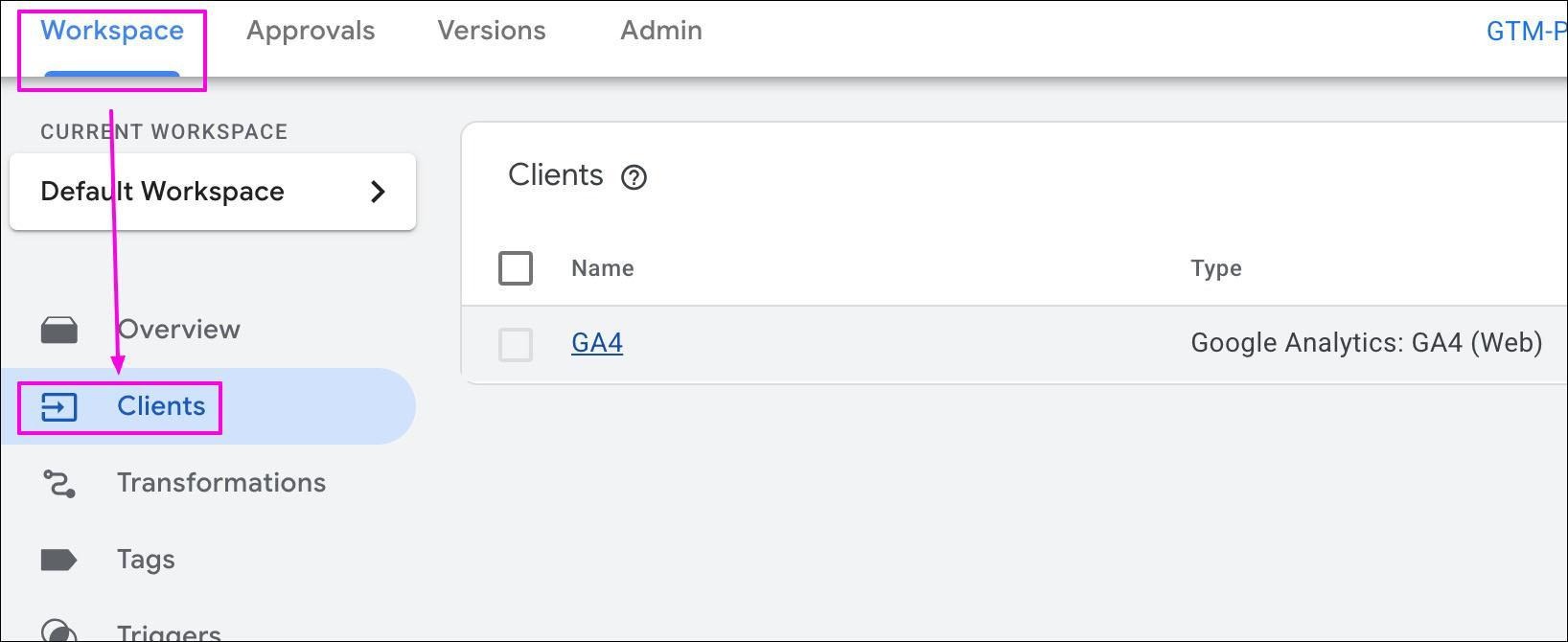
*Note down the name "GA4", we will need this later
At this point, the setup looks like this:
Next, we can set up a GA tag, which sends outgoing GA events to GA endpoint.
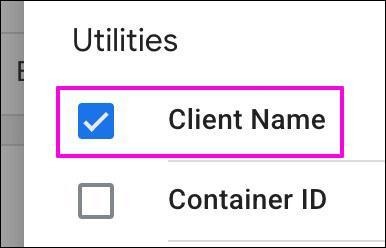
First, let's enable the built-in Client Name variable:
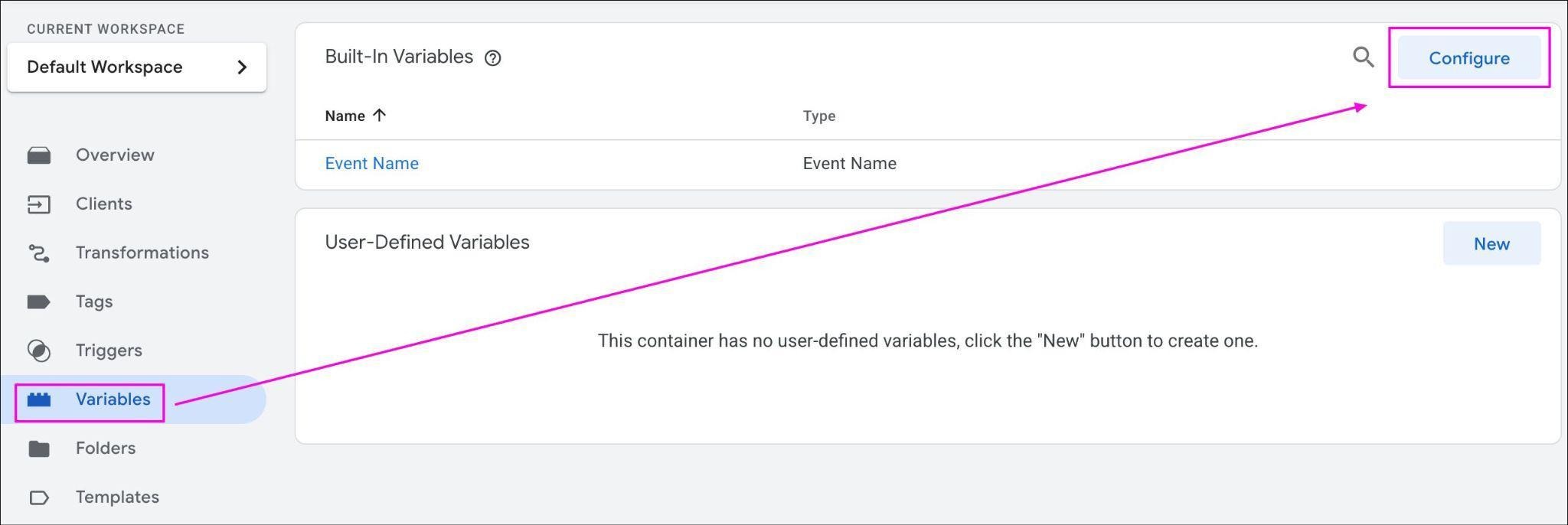
Next, create a trigger that fires whenever there's an incoming GA event:
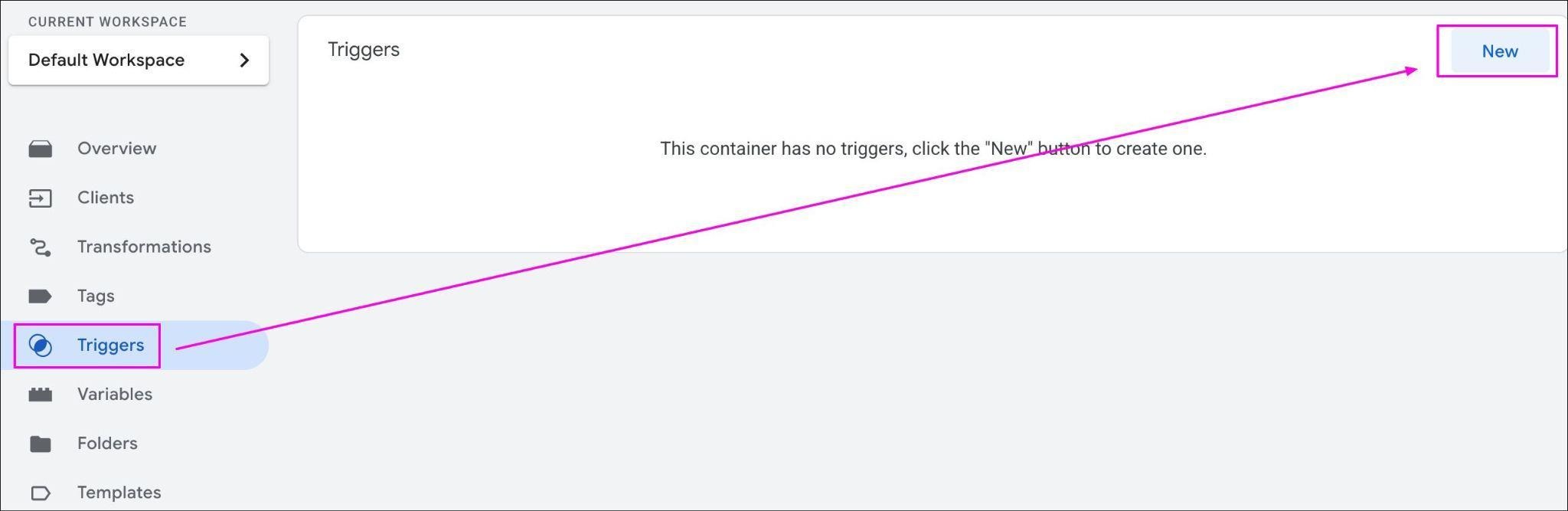
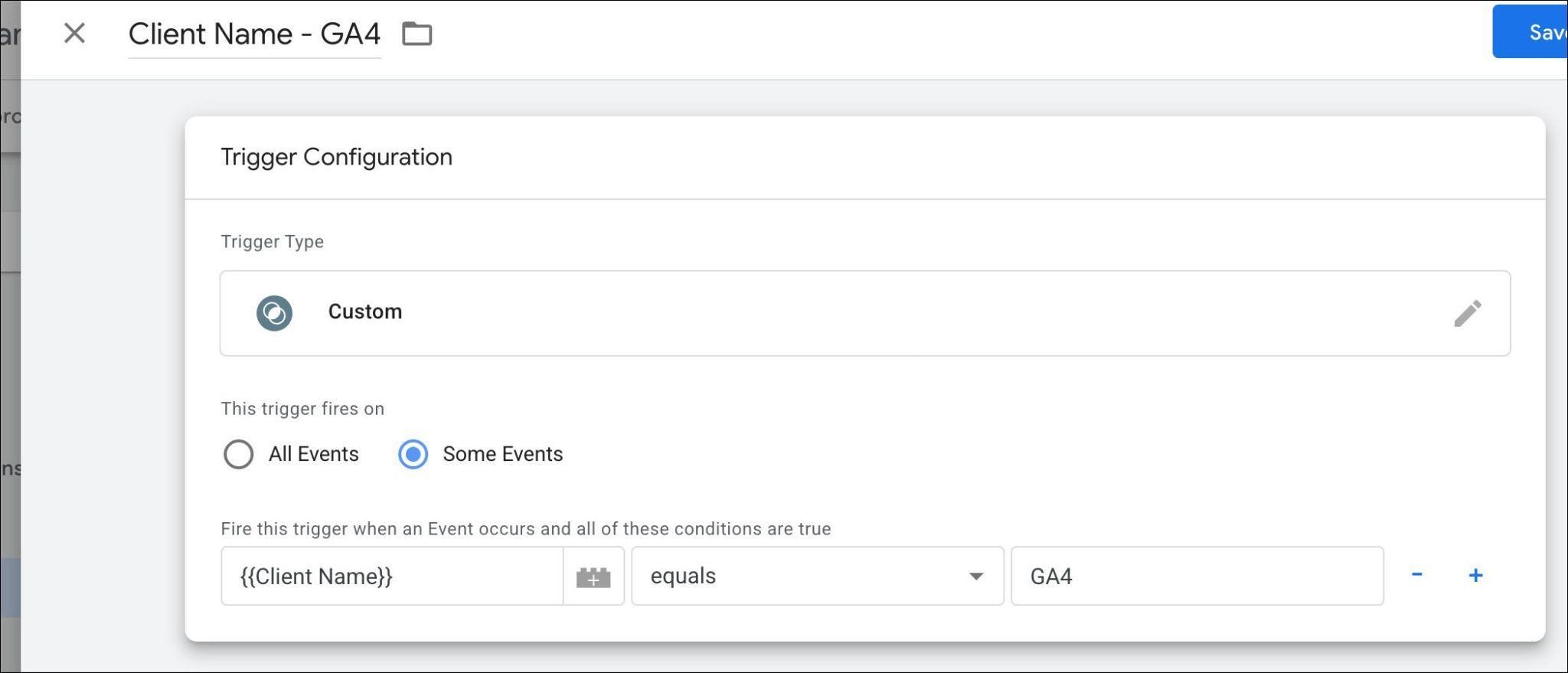
*Ensure that the value "GA4" is exactly as seen on the Clients section above
At this point, the setup looks like this:
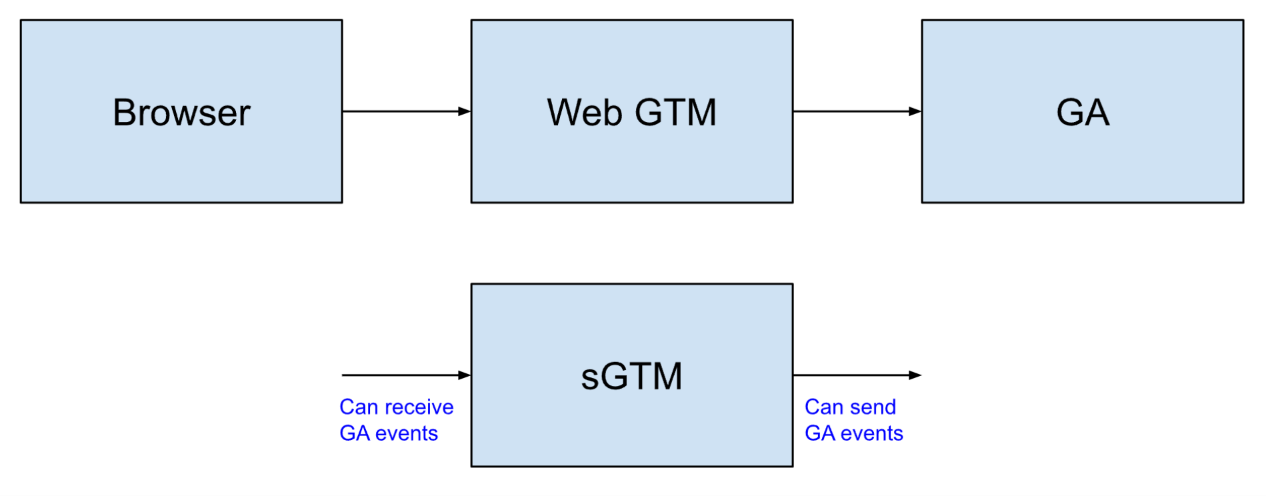
For testing, you can get started with Stape's free plan. Once you have a Stape account, create a new sGTM server by first clicking the sGTM menu item:
Then click the Create sGTM container button:

Then enter your sGTM server info like the example below, ensure to copy and paste the sGTM container config code that you created in the previous section:
Once you created a sGTM server, when you go back to the sGTM page, you will see this info:
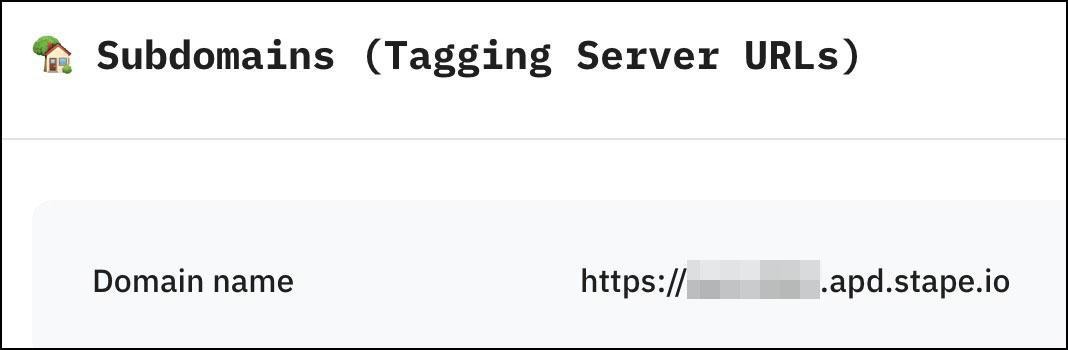
This is the default URL that that Stapes gives and you can use this URL to access your sGTM container.
At this point, the setup looks like this:
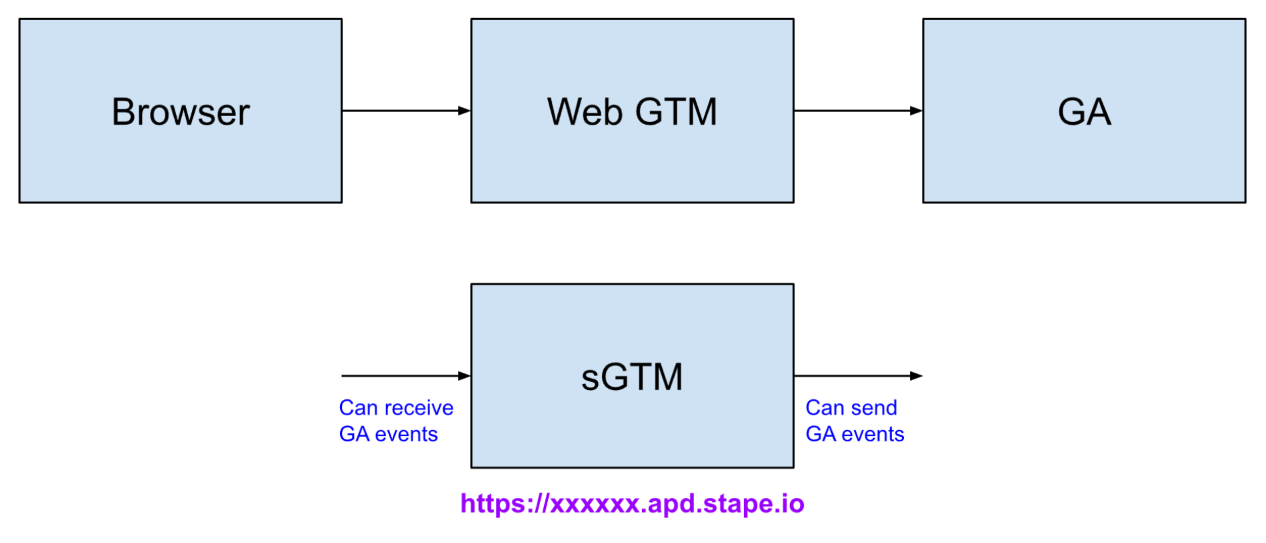
Your sGTM is ready to be used. However, if the sGTM URL is not in the same domain name as your website, there is a higher chance that the network connections will be blocked by the browser or adblocker extensions.
What you want to do next is add a custom domain name:

This is the only part that requires a bit of technical work. Work with your IT administrator, follow the instructions and map a subdomain name to Stape's server. It's recommended to use a subdomain name that has no relation to tracking or advertising. In our case, we went with: msm.ayudante.asia (short for "measumrent").
Once this is done, go back to your sGTM container admin, and update the URL like this example:
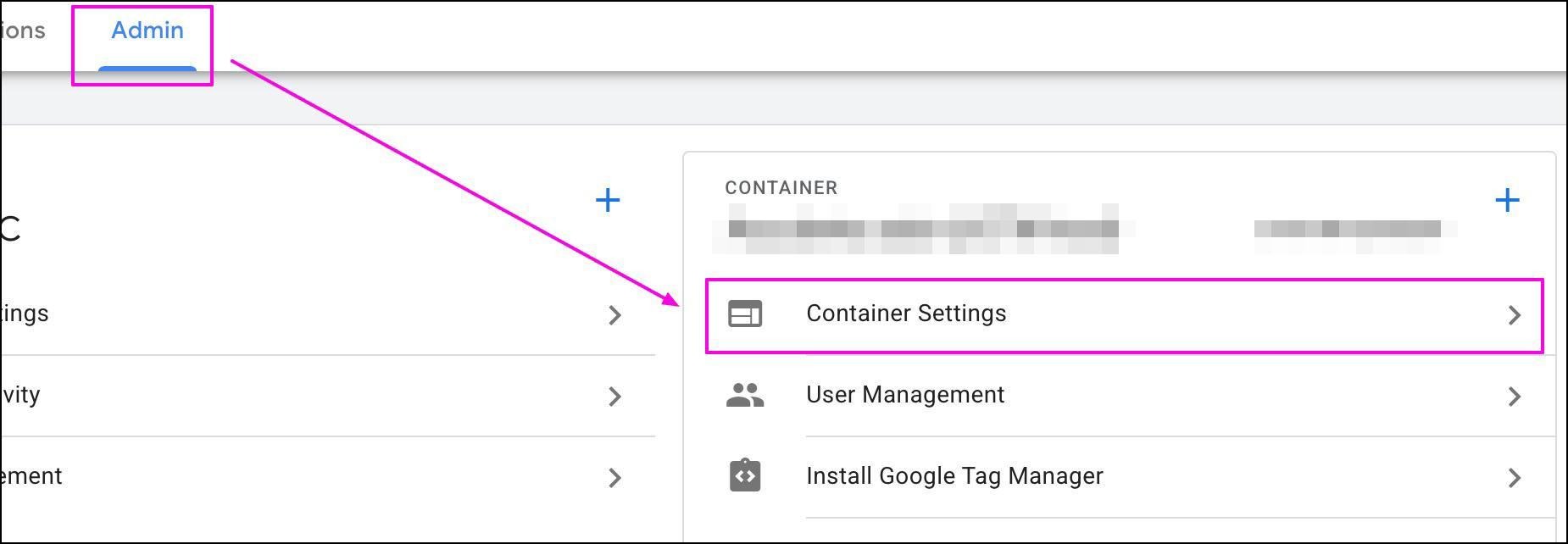
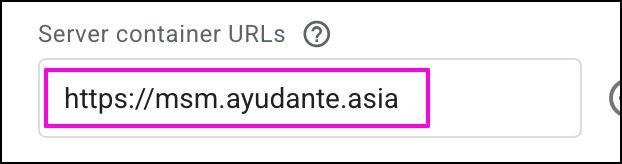
At this point, the setup looks like this:
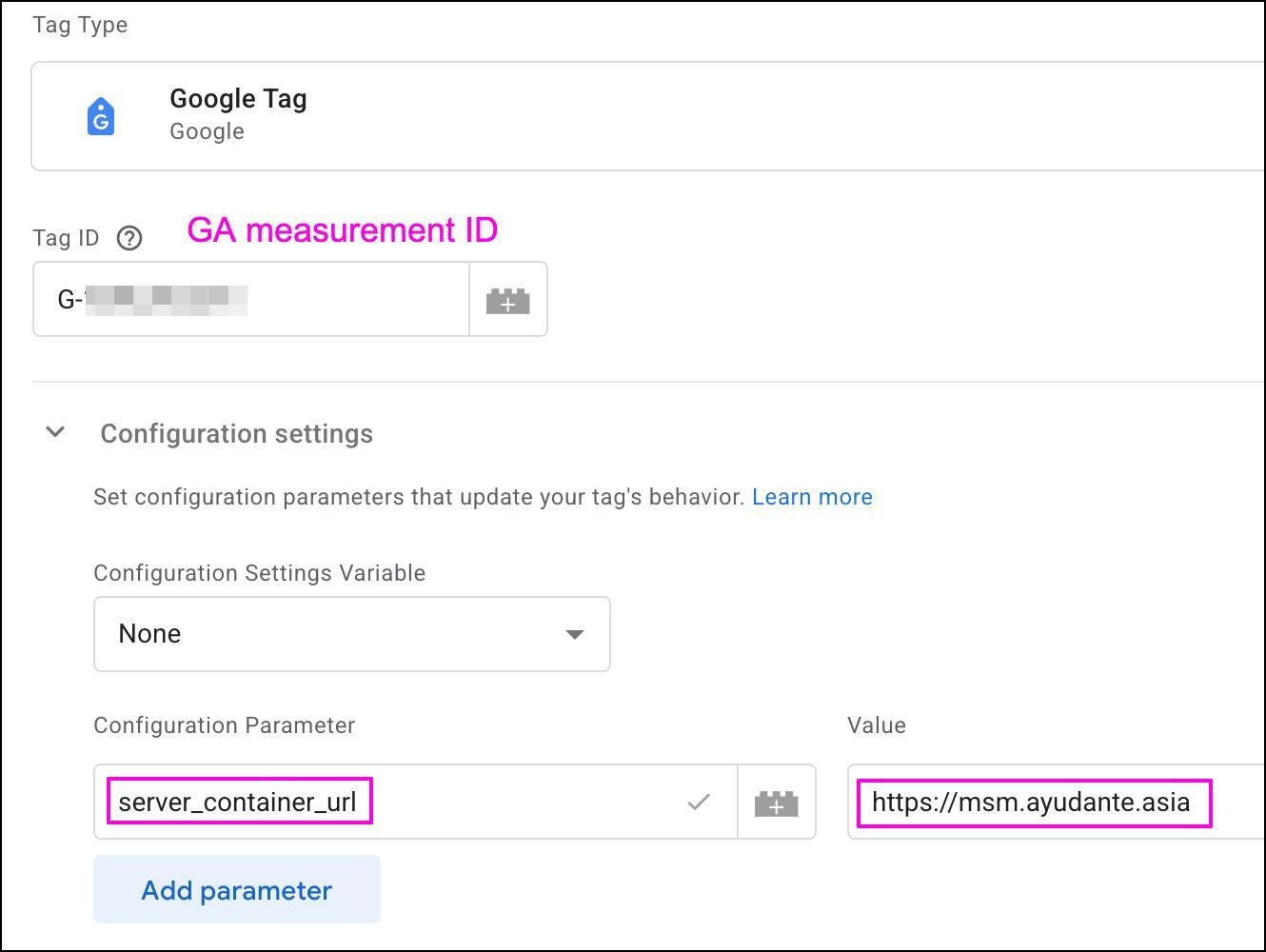
The final step is to migrate GA tags from the web GTM to sGTM. You can do this easily by just updating the Google Tag where the GA measurement ID is specified. In your web GTM container, update your GA Google Tag by adding a server_container_url parameter and entering your sGTM URL, like this:
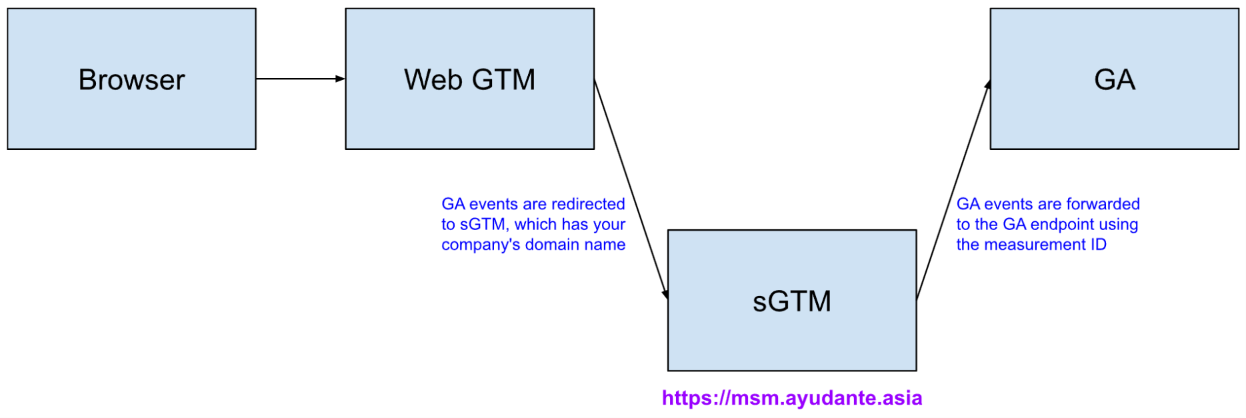
At this point, your setup is complete, and it looks like this:
In our tests, we kept the web GTM and sGTM methods running concurrently, recording to different GA properties. In mere 14 days, we observed quite a significant improvements. The sGTM method is recording:
+18% Total users+20% Total users for Desktop/Chrome browser+23% Total users for iOS/All browsersWe then added a Google Ads tag to sGTM, using a page URL as the trigger. When we navigate to the page, we can see this in the sGTM preview:
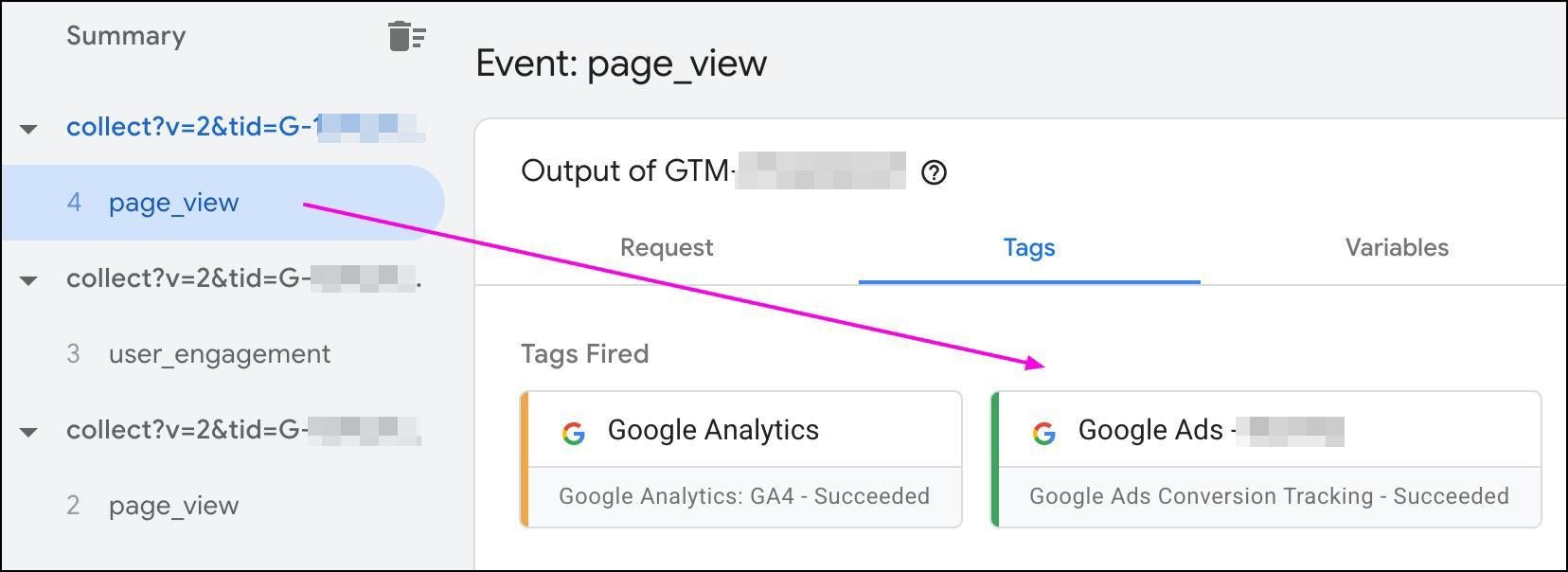
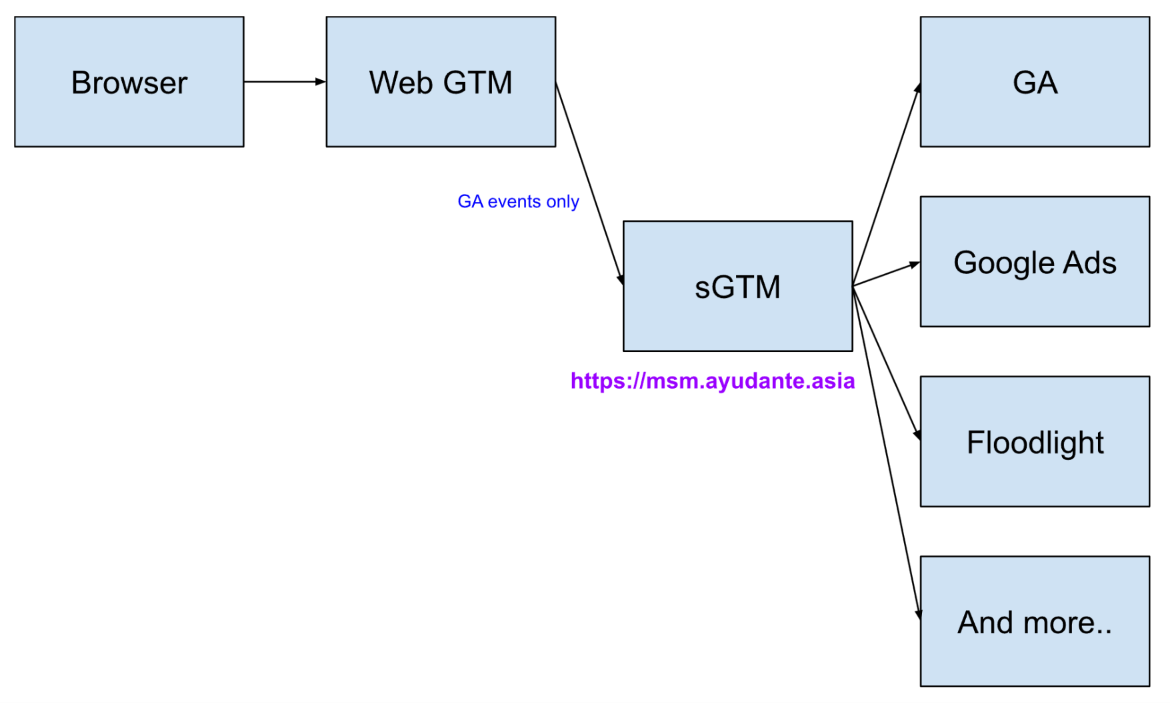
This proves the concept of tag consolidation:
Stape has many Power-Ups that you can deploy to further improve your tracking accuracy. Here we want to showcase just a few that we have tested on our website.
Looking at this diagram again:
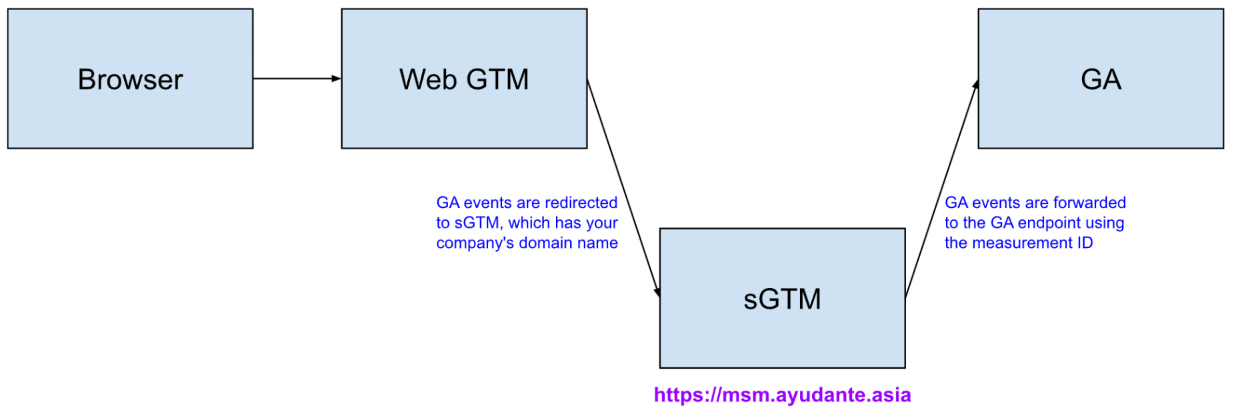
You'll notice that the browser is still connecting to web GTM using a code snippet like this:
Javascript
<!-- Google Tag Manager -->
<script>
(function (w, d, s, l, i) {
w[l] = w[l] || [];
w[l].push({ "gtm.start": new Date().getTime(), event: "gtm.js" });
var f = d.getElementsByTagName(s)[0],
j = d.createElement(s),
dl = l != "dataLayer" ? "&l=" + l : "";
j.async = true;
j.src = "https://www.googletagmanager.com/gtm.js?id=" + i + dl;
f.parentNode.insertBefore(j, f);
})(window, document, "script", "dataLayer", "GTM-XXXXXXXX");
</script>
<!-- End Google Tag Manager -->
Notice the www.googletagmanager.com domain name. Because it's not the same as your company's domain name, the browser may block the connection.
When we make use of the Custom Loader power-up, we are given a unique code snippet that uses our own company domain name: msm.ayudante.asia. This can greatly improve tracking.
When we deployed the Ad Blocker Info power-up and configured GTM to record the additional parameters as GA custom dimensions, we can observe insights such as the percentage of users/sessions/events where adblocker is likely used by the users:
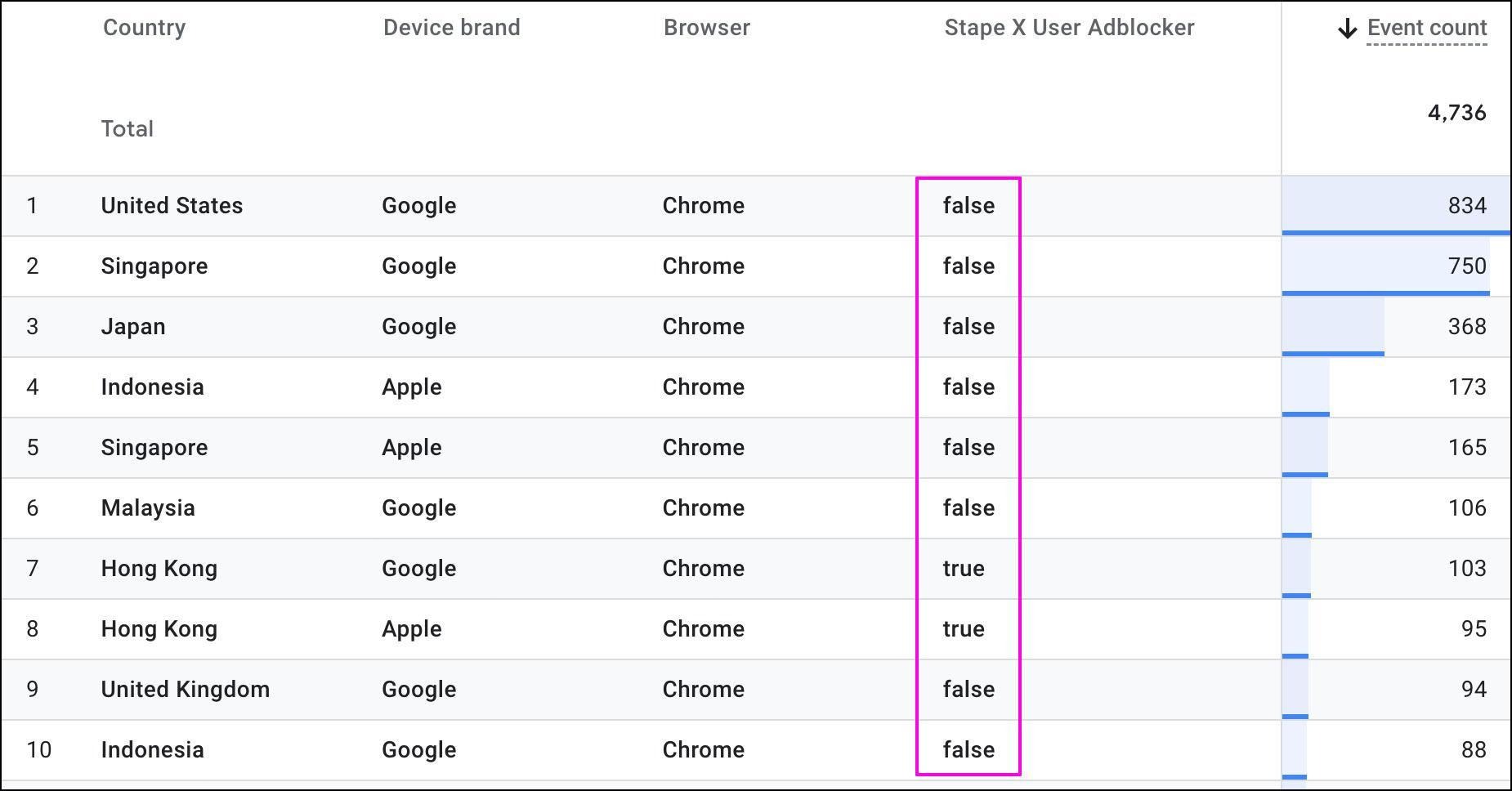
This also gives us an indication that, if we did not use sGTM, we would not have been able to record these activities.
When we deployed the Bot Detection power-up and configured GTM to record the additional parameters as GA custom dimensions, we can observe insights such as the probability of a bot traffic (score > 75 is very likely a bot):
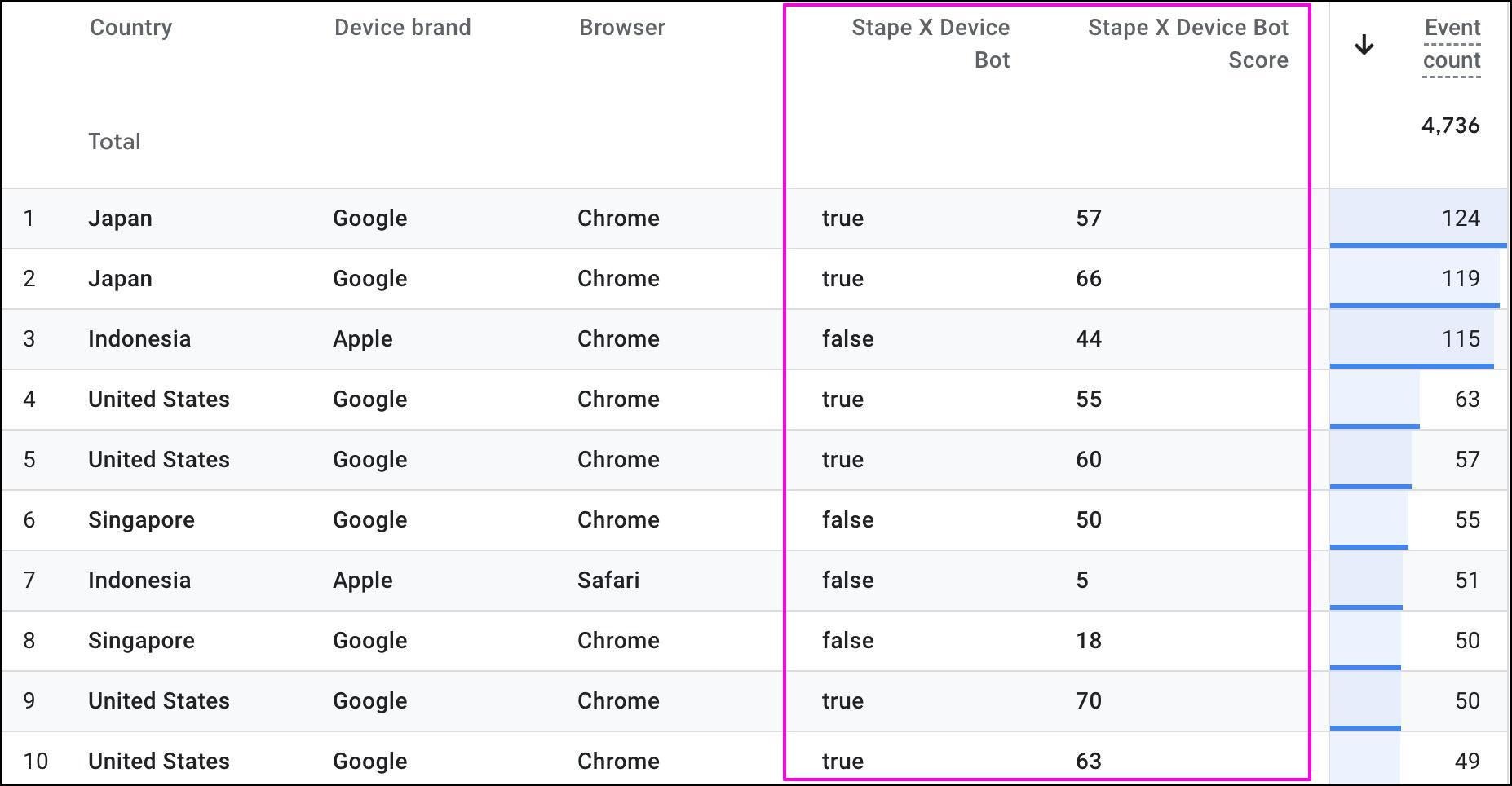
Additionally, you can choose to block bot traffic (score > 75) using Stape or sGTM, so that you have a cleaner data.
sGTM is a powerful technology that helps you to:
However, setting up the sGTM server can become a friction point for your sGTM adoption journey. This is where Stape comes in. As you can see from our step-by-step, setting up a sGTM server takes little to no technical expertise, and the whole process takes just a few minutes. Do consider using Stape if you want to start using sGTM, It may be the right choice for your business.