Tracking clicks on a website is a common measurement practice. For example, you may want to know the number of times users click on the:
In this article, we explain why click tracking may fail when the browsing is loading the next page, and explore a few workarounds, each with their own pros and cons.
Before we go to the explanation, here's a test you can do on your website to illustrate this click issue. This is assuming that you already have Google Tag Manager (GTM) implemented on your website and Google Analytics (GA) Google Tag set up in GTM.
Let's say you have a top menu "Home" that links to the /home page (doesn't open a new window):<a href="/home">Home</a>
You want your tracking to have a well-defined nomenclature, and not just capturing whatever free text there may be in the HTML. So you set up a GA event tracking using a well-defined, universal JavaScript dataLayer structure that can be used for other tracking. For example:
dataLayer.push({
event: "track_event",
event_name: "click",
event_detail1: "top menu",
event_detail2: "home"
});
In GTM, with the Variables and Trigger set up, you can have an GA event tag that looks like this:
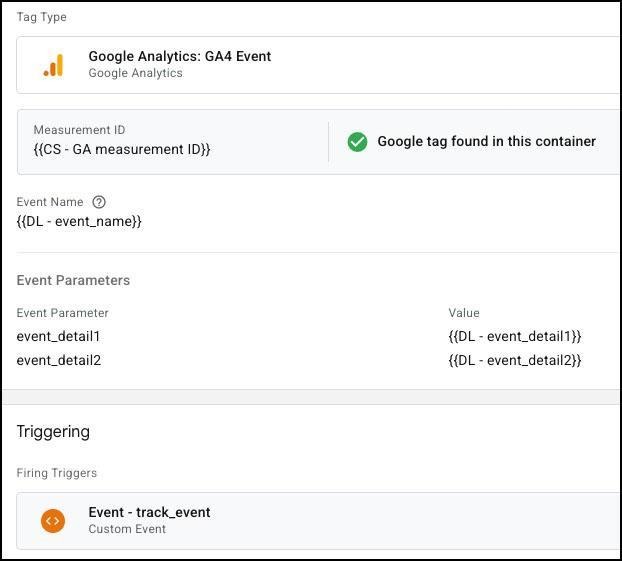
With the dataLayer structure and GTM setup complete, you can then execute the dataLayer code when user clicks the "Home" top menu. For example, you can add an onclick event directly on the HTML:
<a href="/home" onclick="dataLayer.push({event: 'track_event', event_name: 'click', event_detail1: 'top menu', event_detail2: 'home'});">Home</a>
A better way is to use JavaScript addEventListener() function, especially when you have a HTML ID or class attribute to anchor to. For example, if you have the ID attribute:
<a id="topmenu_home" href="/home">Home</a>
You can then execute this JavaScript code:
document.querySelector("#topmenu_home").addEventListener(function () {
dataLayer.push({
event: "track_event",
event_name: "click",
event_detail1: "top menu",
event_detail2: "home",
});
});
This makes for better clarity and a safer way because it doesn't affect any existing click tracking mechanism there may be on the HTML element.
With above done, and with dataLayer/GA debug browser extensions installed (eg. Adswerve - dataLayer Inspector+) on your browser, we are now ready to test it.
Test #1
Result = You may see that there is no GA event fired.
This may be surprising to learn as we have always thought that doing click tracking using GTM has no issues at all. Please read on as we will explain further.
Test #2
Result = After a short delay of about 5 seconds, you should see the GA event fired in the original tab. For example, using the browser extension, you should see this on the browser Console window:
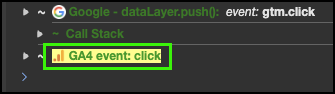
Let us explain what actually happens, step by step:
(1) Website ➜ (2) dataLayer push ➜ (3) GTM ➜ (4) GA tag ➜ (5) GA endpoint
(1) Website
First of all, the website has GTM container and dataLayer codes implemented.
(2) dataLayer push
When the user clicks on the top menu "Home", the website executes the following codes, pushing new values into the dataLayer:
dataLayer.push({
event: "track_event",
event_name: "click",
event_detail1: "top menu",
event_detail2: "home",
});
(3) GTM
GTM detects that new values are pushed to the dataLayer. It processes the data, and fires the GA tag.
(4) GA tag
GA tag then executes and here's the important bit:
This is important to remember. We will come back to this point again.
(5) GA endpoint
The browser then connects to and sends the data to the GA endpoint. This is the part where, when examining the browser Network panel, you should see network hits that look like:
https://www.google-analytics.com/g/collect?v=2&...
When you see this, it means the browser has successfully sends out the hit.
The browser needs time to execute steps (1) to (5). Modern devices and browsers can execute all the steps really quickly without any issues, except for step (4).
Unfortunately, there are no perfect solutions to solving this issue. In the next sections, we explore a few workarounds that can help you achieve the same tracking goals.
If you are only interested to know the source of the clicks that lead to a page view, you could forgo the click tracking and add the click info to the link, effectively passing the info to the next page. For example:
<a href="/home?from=topmenu_home">Home</a>
In GTM, you can:
In GA, you can:
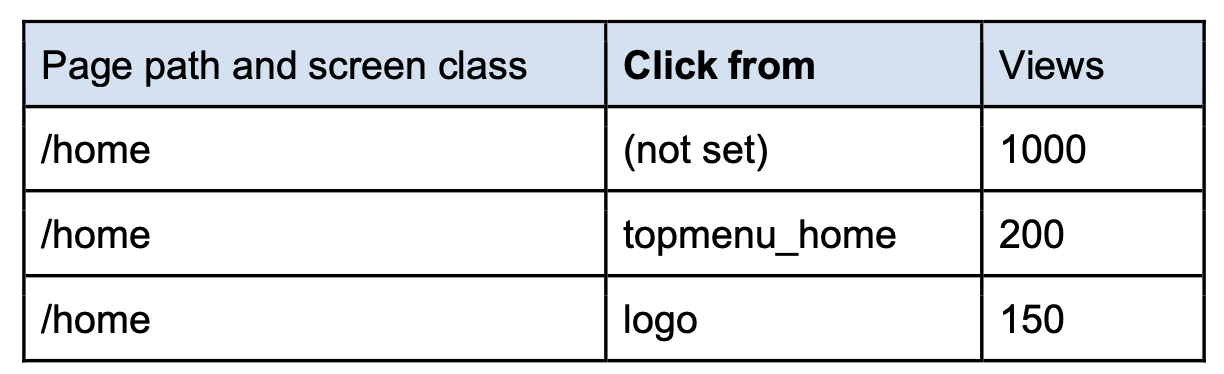
If this is your measurement goal, and then this method works well without any major cons.
Cons (minor)
?from URL parameter remains. That means, even if they are accessing the link directly, the GA page_view tracking would still (wrongly) include the from parameterThe above method focuses on the next page. One way to look at it:
We are already on the next page, we want to record a page view of /home, and it comes from a click from the top menu "Home" of the previous page
There are times when your measurement goal needs to focus on the current page where the clicks happen. This is especially true when you are recording:
If the two events are recorded on different pages, reporting the click-through rates could have misleading results if you include the page dimensions.
If we still intend to pursue this method, it can become complicated quickly as explained below:
Cons
Perhaps the simplest method is to turn the events that you want to record on page unload (eg. click, select_promotion) into key events in GA. When you do this, GA will dispatch these events immediately, instead of putting them into a queue.
However:
Cons
If the impact to the predictive metrics is not a big concern to you, this method can be very effective. However, we don't recommend using it for generic events such as click. It's better to be used for specific events such as select_promotion or custom events like topmenu_click.
If the above workarounds are not ideal to you and you still want to do the click tracking reliably on the current page. One final method that you can employ is to bypass the entire middle steps and go directly to the (5) GA endpoint. That is:
As mentioned above, GA endpoint is the stage where the browser is making a network hit to:
https://www.google-analytics.com/g/collect
Note that this endpoint is documented, we don't recommend using it directly.
Instead, you can use the the GA Measurement Protocol (MP), which is fully documented and has a similar URL construct:
https://www.google-analytics.com/mp/collect
Because we are bypassing the middle steps, this method can be very reliable. However, there are some cons:
Cons
Next we will walk you through how to set up this workaround method, step by step:
On GA admin, go to your web data stream:
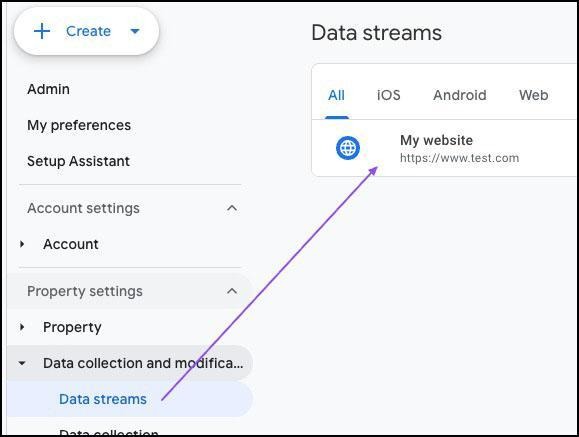
Go to the MP section and create a new secret key:

Note down the secret key, we will need it later.
Sending an event to MP requires some coding and you need to retrieve the current GA session's client ID and session ID, so we recommend doing this in GTM. You may use our example below to prepare a JavaScript gaMpSend() function in GTM that can be called anytime you want to send an event to MP.
Go to Variables, at the Built-In Variables section, click Configure:
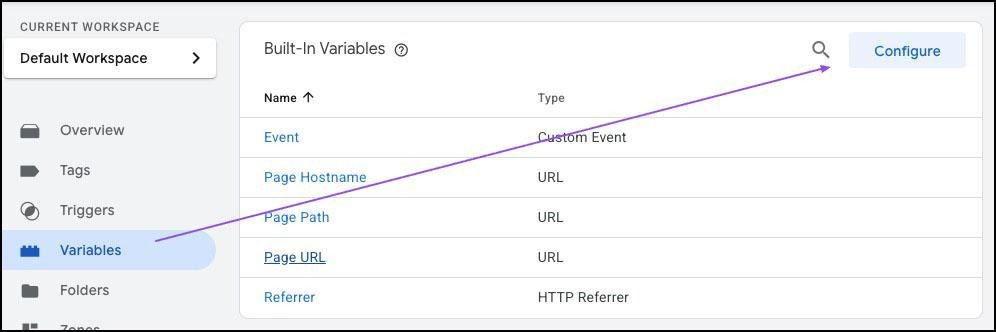
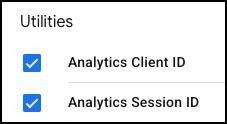
Ensure that these two variables are enabled:
Create a Custom HTML tag using this code example, ensure to load this tag on Initialization:
<script>
/*
---------------------------------------------------
----- GA Measurement Protocol - Send function -----
---------------------------------------------------
*/
function gaMpSend(gaApiBody) {
if (typeof {{Analytics Client ID}} != "undefined" && typeof {{Analytics Session ID}} != "undefined") {
// ------ GA Measurement Protocol details -----
var gaMeasurementId = "G-XXXXXX"; // Enter your GA measurement ID here
var gaApiSecret = "XXXXXXXXXXXX"; // Enter your MP secret key here
var gaUrl = "https://www.google-analytics.com/mp/collect?api_secret=" + gaApiSecret + "&measurement_id=" + gaMeasurementId;
// ----- Current timestamp in microseconds -----
var gaTimestamp = Math.round((performance.timeOrigin + performance.now()) * 1000);
// ----- Add additional parameters to the API JSON -----
gaApiBody.client_id = {{Analytics Client ID}};
gaApiBody.events[0].params.session_id = {{Analytics Session ID}};
gaApiBody.timestamp_micros = gaTimestamp;
// ----- Send a POST hit to MP -----
fetch(gaUrl, {
method: "POST",
body: JSON.stringify(gaApiBody),
keepalive: true
});
}
}
</script>
To send an event to MP, you first need to construct the event and event parameters in JSON format. Whether you want to send a simple event (eg. click) or something more complex (eg. select_promotion with the ecommerce items object), you may use this tool to help you construct the JSON format:
https://ga-dev-tools.google/ga4/event-builder/
(You may use dummy values. The idea is to get the correct JSON structure so that you can replace the parameters with actual values in your codes)
For example, in our dataLayer example:
dataLayer.push({
event: "track_event",
event_name: "click",
event_detail1: "top menu",
event_detail2: "home"
});
We can map this to the Event Builder, like:
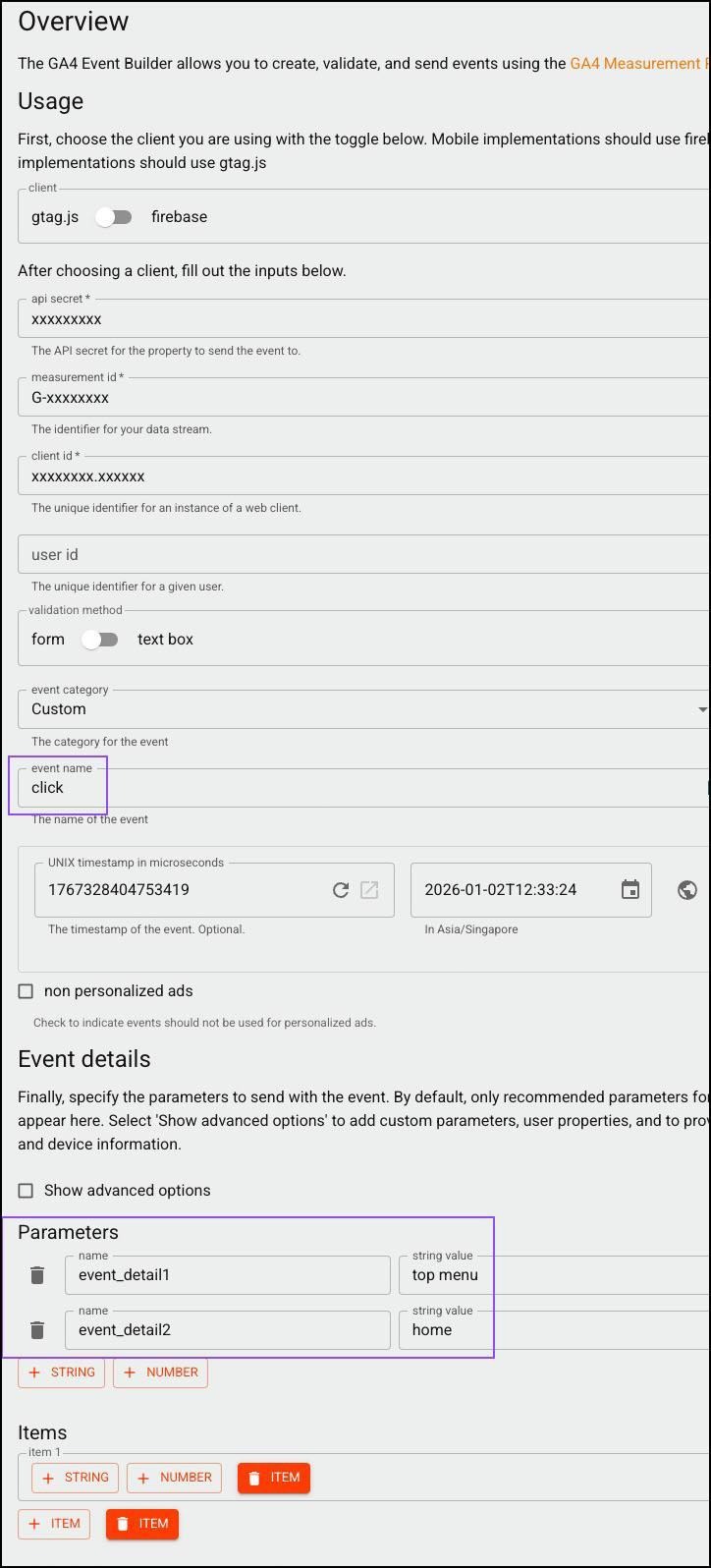
Then from the Payload section, you can grab the JSON:
{
"client_id": "xxxxxxxx.xxxxxx",
"timestamp_micros": 1767328404753419,
"non_personalized_ads": false,
"events":
[{
"name": "click",
"params":
{
"items": [],
"event_detail1": "top menu",
"event_detail2": "home"
}
}]
}
Now since we have already prepared the common parameters (client_id, timestamp_micros) in the gaMpSend()function in GTM, we can remove them. This becomes the final JSON:
{
"non_personalized_ads": false,
"events":
[{
"name": "click",
"params":
{
"items": [],
"event_detail1": "top menu",
"event_detail2": "home"
}
}]
}
With the above done, you can now send an event to MP. For example, using the previous dataLayer example:
document.querySelector("#topmenu_home").addEventListener(function () {
dataLayer.push({
event: "track_event",
event_name: "click",
event_detail1: "top menu",
event_detail2: "home",
});
});
We can replace it with:
document.querySelector("#topmenu_home").addEventListener(function () {
if (typeof window.gaMpSend === "function") {
window.gaMpSend({
non_personalized_ads: false,
events: [
{
name: "click",
params: {
items: [],
event_detail1: "top menu",
event_detail2: "home",
},
},
],
});
}
});
When you test it, you should be able to see the MP hit in the browser Network panel:
https://www.google-analytics.com/mp/collect?...
If you find yourself missing some click events when a page is unloading, first try to determine what is the measurement goal and if you really need the click tracking. Then you can try one of the workarounds that we listed above.
There are no perfect solutions, but we hope that one of workarounds can achieve your measurement goal.